Panes & layout
Move focus between the tree, viewer, and problems panel, then resize them, dock them to any edge, and zoom one pane to fill the window.
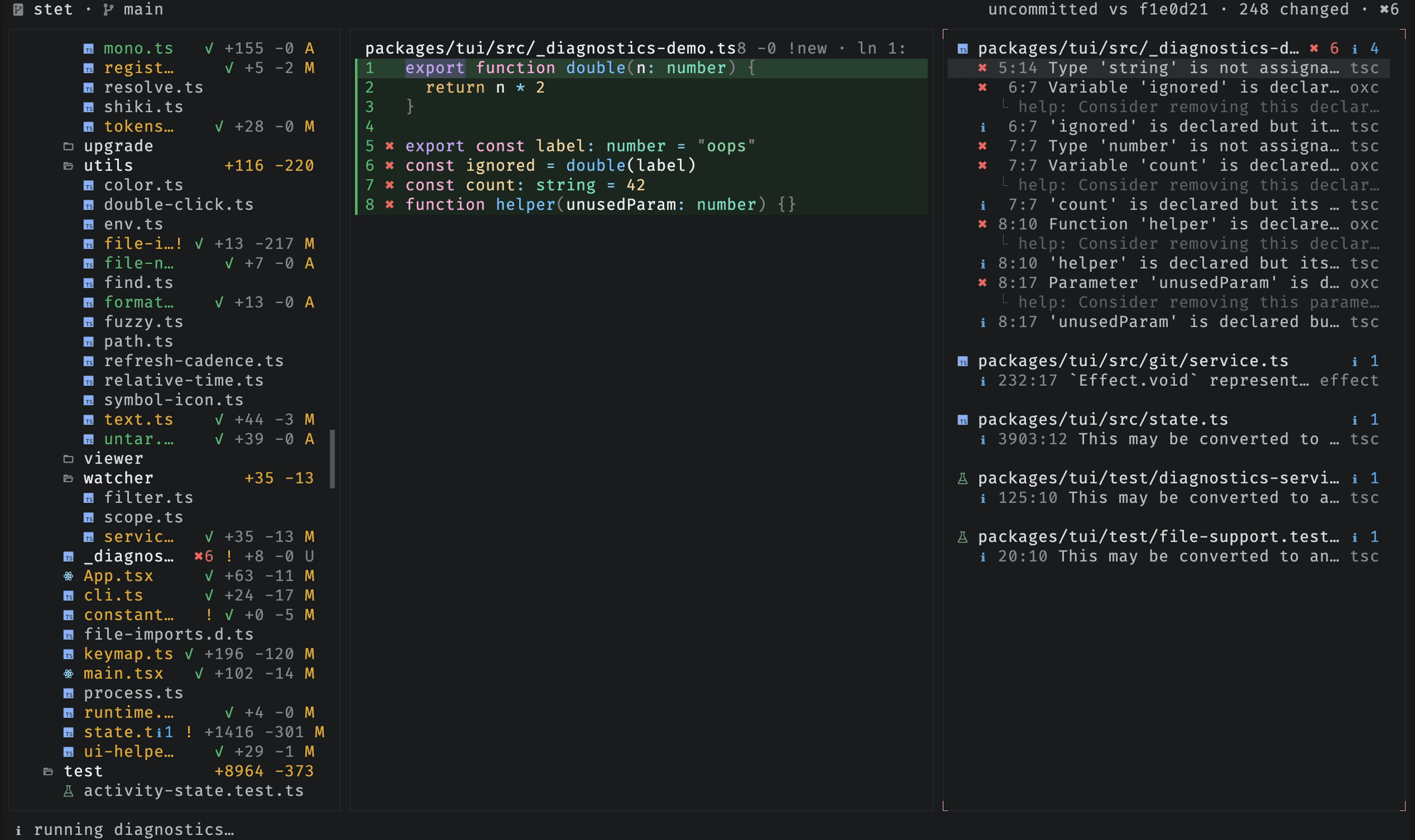
stet is three panes in one window: the repository tree, the file viewer, and the problems panel. The viewer is always open and always in the middle. The tree and the panel dock to an edge, resize, and close, so you can shape the window around whatever you are doing.
The project search pane (ctrl-f) is not a fourth pane. It replaces what the
viewer shows, inside the viewer's own border, and keeps its query and results
when you close it.
Move between panes
tab cycles focus through the panes that are open, in the order they appear on
screen, so re-docking a pane changes the order rather than contradicting it.
Clicking a pane focuses it, and the wheel scrolls whichever pane the pointer is
over.
The focused pane tints its four corner marks. The border itself stays neutral, so taking focus never moves anything.
| Control | Action |
|---|---|
tab | focus the next open pane |
ctrl-b | show or hide the tree |
p | show or hide the problems panel, focusing it when it opens |
esc | close the problems panel, then the search view, then nothing |
Focus never rests on a closed pane: hiding the pane you are in hands focus to
another open one. esc only ever closes. Quitting is q, which asks first.
Resize a pane
[ and ] resize the focused pane and \ returns it to its default size. The
tree and the problems panel are the two panes with a size of their own; the
viewer is whatever they leave, so from the viewer these keys fall back to the
tree.
A pane resizes along the edge it is docked to, two columns on the left or right and one row on the top or bottom, which are about the same distance on screen because a terminal cell is taller than it is wide.
Each pane keeps a separate size per axis. Moving it from a side to the top does not turn its width into a height, and moving it back restores the width you set.
Shrinking a pane past its minimum (24 columns, or 5 rows) closes it, the way an IDE pane collapses
rather than clamping. ] reopens it at the size you left it.
Dock a pane to an edge
d moves the focused pane to the next edge, clockwise through left, top, right,
and bottom, so four presses return it home. The tree starts on the left and the
problems panel on the bottom.
The panel takes its edge before the tree does. That is why a bottom-docked panel spans the full width while the tree runs the full height beside the viewer, and why docking both to the same edge stacks them with the panel on the outside.
Zoom one pane
m fills the window with the focused pane and pressing it again restores the
layout. Zoom follows focus, so tab while zoomed changes which pane fills the
window.
The geometry keys ([, ], \, and d) do nothing while zoomed, since their
result would sit hidden behind the zoomed pane. Showing or hiding a pane leaves
zoom.
Keep a layout
Press ctrl-s to save the current arrangement, along with your other session
settings, to your config. The sidebar and problems sections also take these
directly; see the configuration reference
for every key and its default.
Within the viewer, files stay open as tabs with their own history. Those are covered in reading files & diffs.